TERMPoint
APM Terminals Port Elizabeth Appointment System
My Dashboard
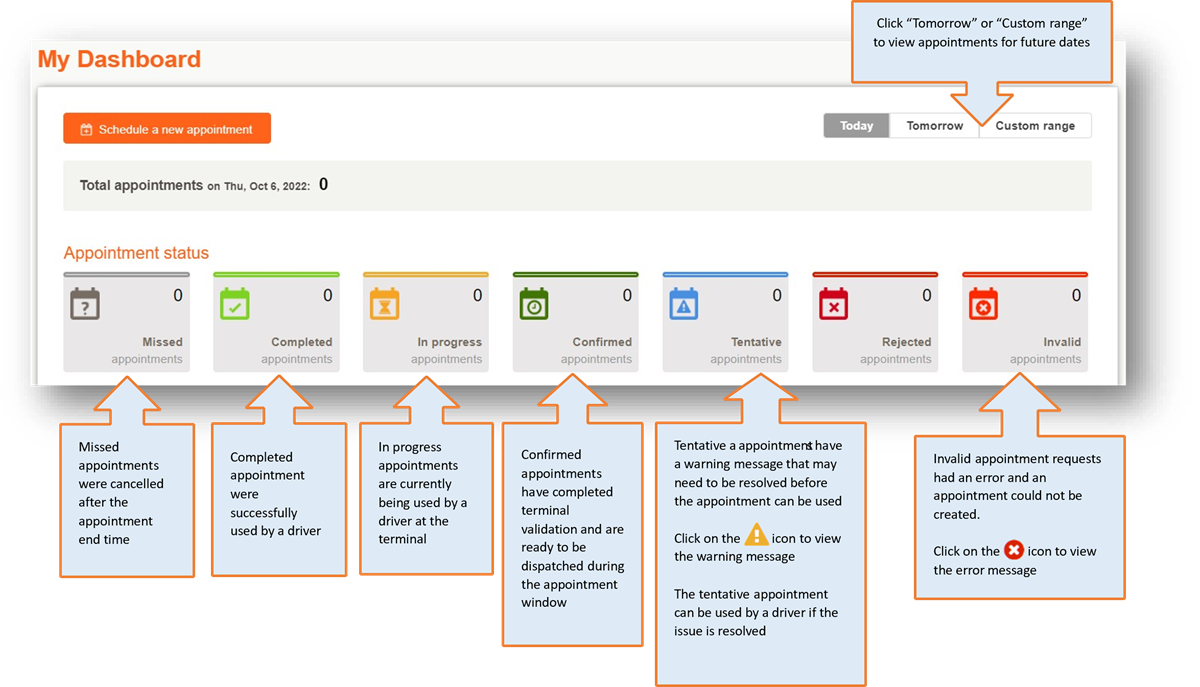
My Appointments
Pending Appointments
Pending appointments are waiting to be checked by the terminal

- Appointments can be submitted once they are made available but are only processed during gate hours and will remain pending overnight and over weekends.
- To see the pending appointments, select an appointment status tile or the My Appointments tab on the left and click on the “Pending Requests” button to slide the button to the right.
- Appointments in a pending status cannot be cancelled or changed until they are confirmed.
Managing Appointments
Manage an appointment to add or edit information
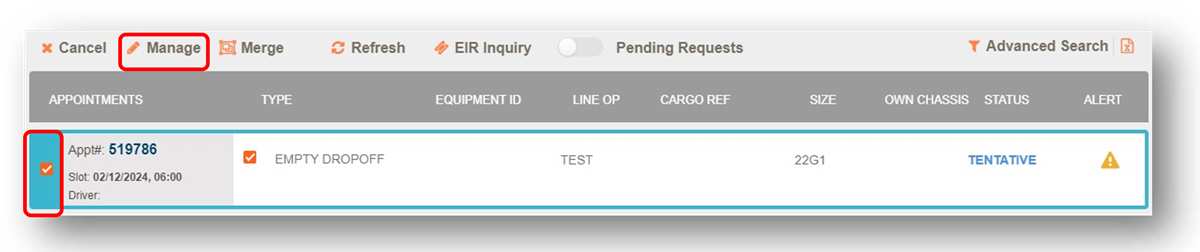
- The appointment will be cancelled if it is managed after the appointment end time
- The appointment cannot be managed after the driver passed through OCR in at the terminal
Merging Appointments
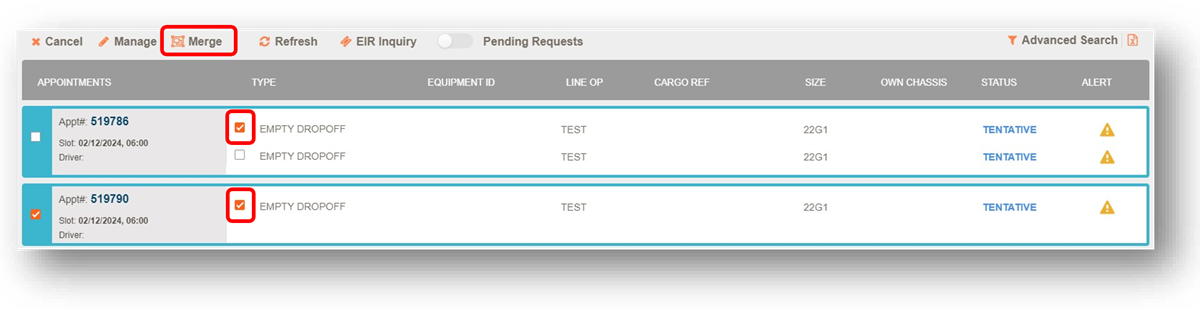
All the driver’s moves for a single visit to the terminal should be merged so they only have one appointment number when they arrive at the terminal. Select the check box next to all the appointments the driver will be completing in the same visit and select “merge” at the top of the page.
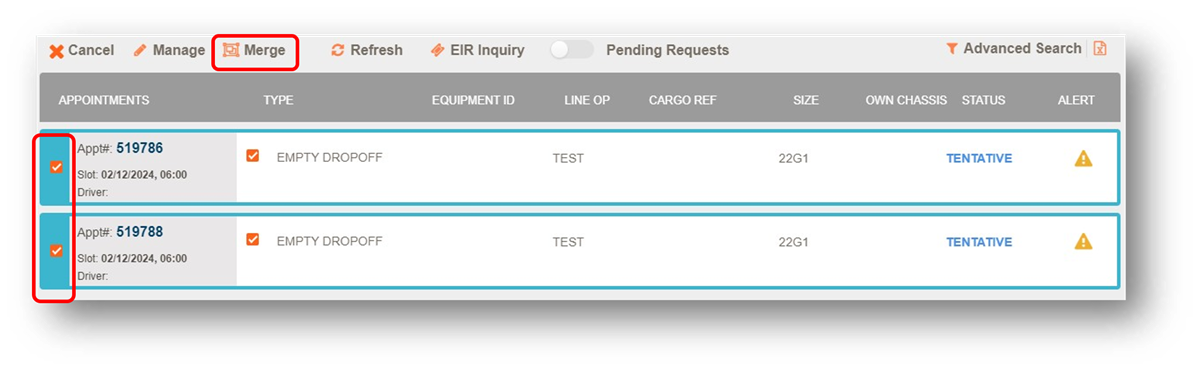
Then select “Merge” again to complete the merge. Up to 2 X 20’ pickups and 2 X 20’ drop-offs can be merged on the same appointment.
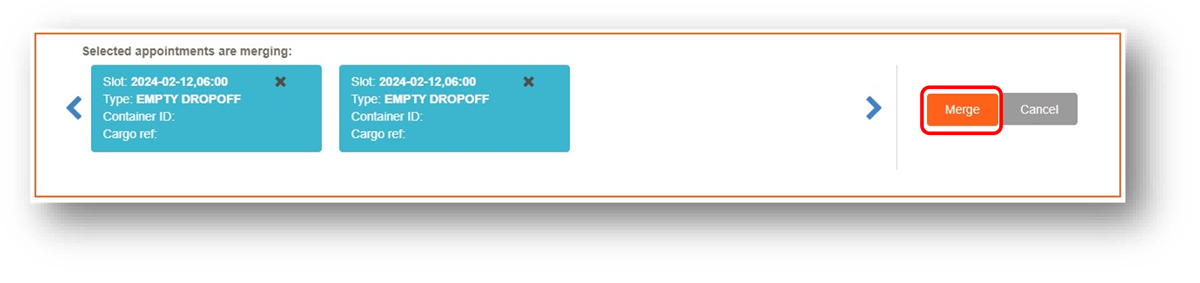
To change which moves are merged, select the check box next to each container and select merge at the top of the page.
Cancel Appointment
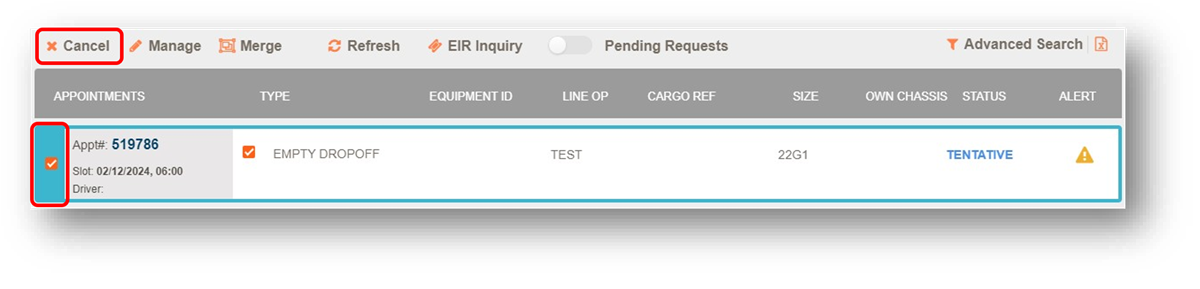
Select the check box to the left of the appointment(s) you would like to cancel, then the cancel button at the top of the page.
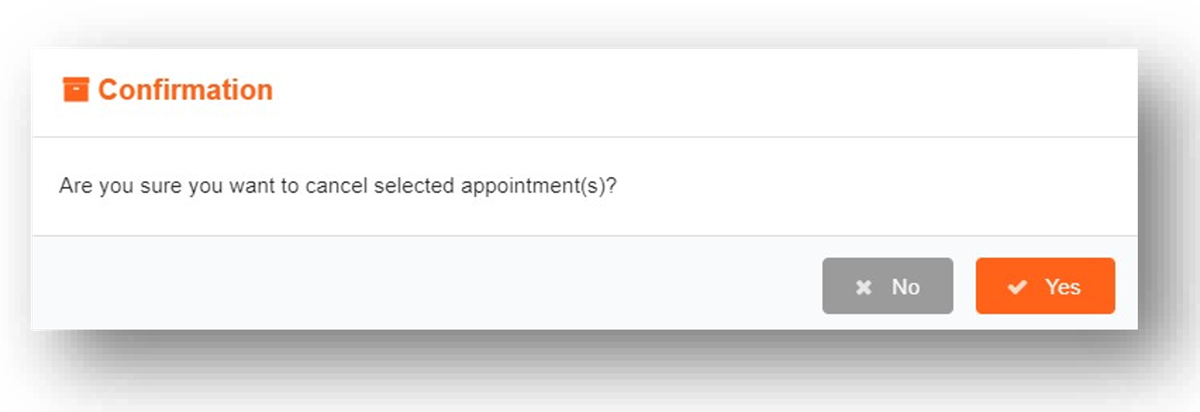
You will get a popup message to confirm that you would like to cancel the appointment before it is final.
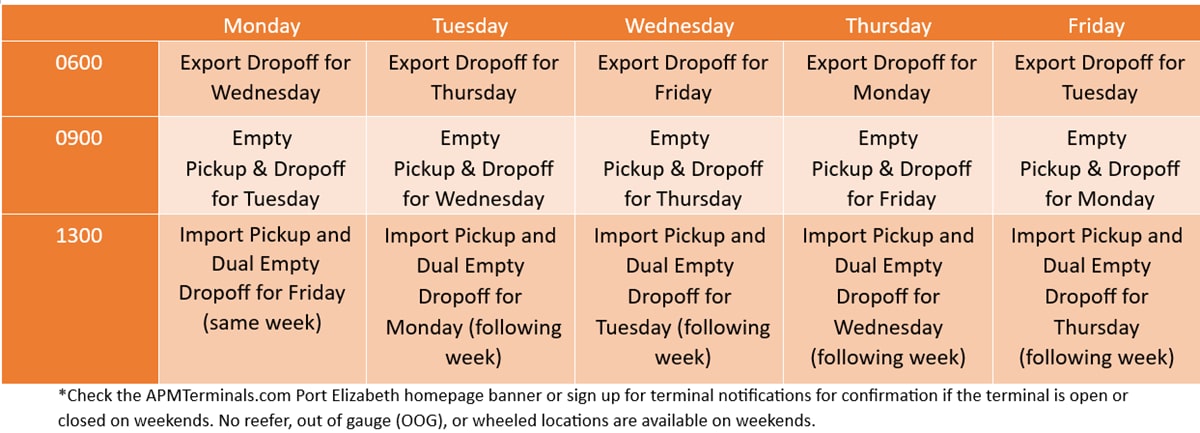
What Appointments Become Available Each Day
Watchlist
The watchlist can track the status of up to 50 import containers. You can add containers that are not available for an appointment to the watchlist, such as containers still on the vessel or on hold. The user that added the container to the watchlist will receive an e-mail notification from TERMPoint once the container is available.
Empty Appointment Availability Report
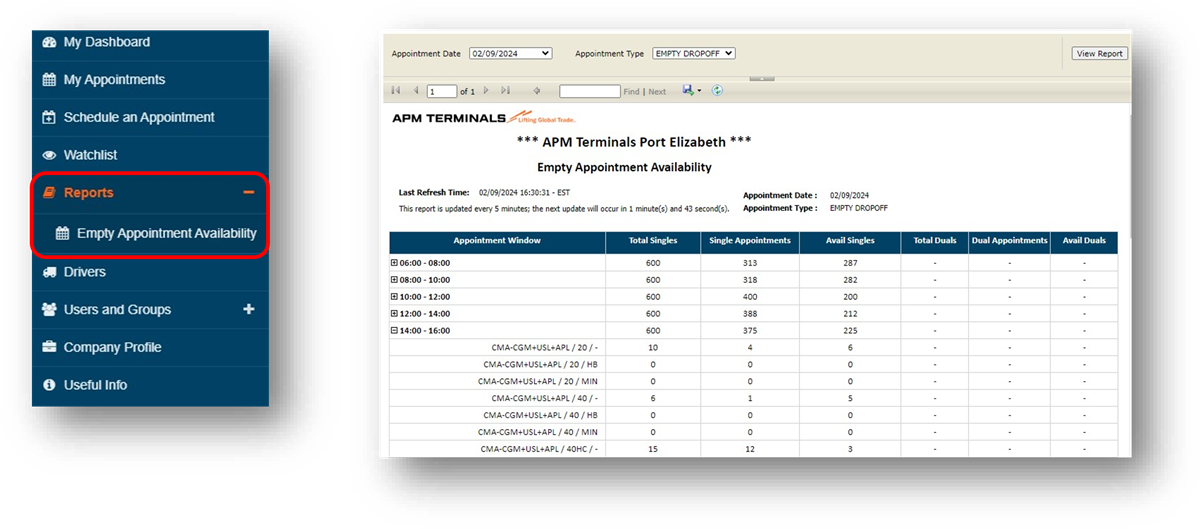
 To view how many empty drop-off or pickup appointments are available, select the Reports section on left side and then the Empty Appointment Availability. The appointments are broken down by equipment pool, equipment type, and grade.
Manage Users and Groups
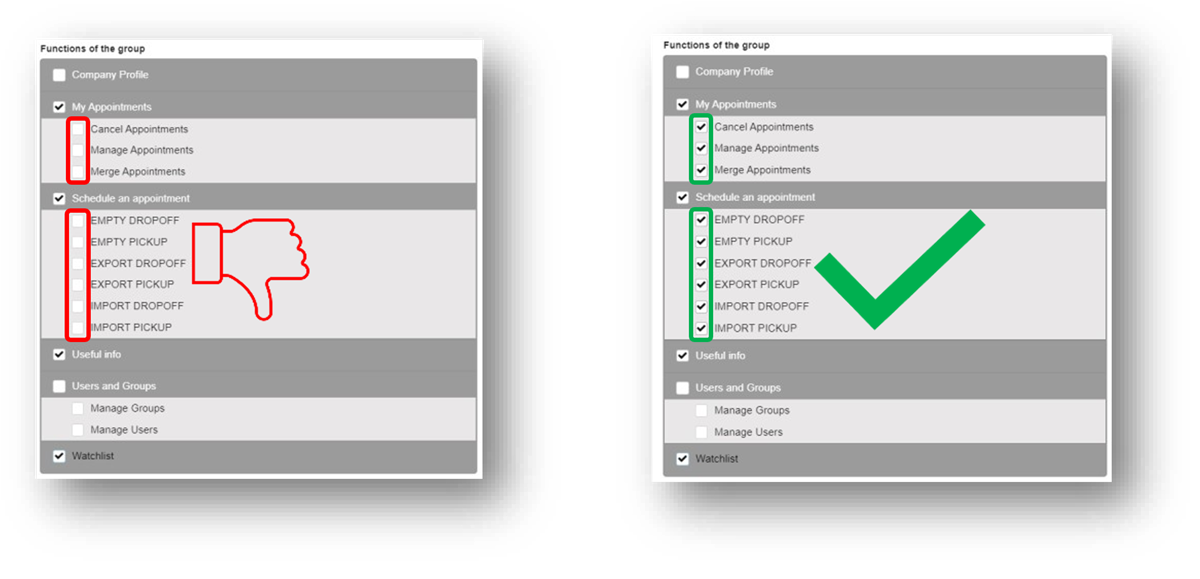
Under the Users and Groups tab on the left sidebar, use the Manage User Groups to customize the level of access and the Manage Users to make accounts for other people at your company. It is best practice to provide each user with individual logins with only the necessary access.
If you want to give a group access to all the features in a section, all the features in the section need to be selected, not only in the top box.
Frequently Asked Questions and Tips
- All gate transactions except out of gauge (OOG) or bundles of flat racks require an appointment.
- All Appointments have a 1hr grace period after their appointment window. If the driver arrives after their appointment time, the appointment is missed and will have to be rescheduled.
- TERMPoint only performs terminal operating system (TOS) validation when the appointment is created.
- If an appointment is cancelled by the terminal, then all TERMPoint users for the trucking company will receive an email notification.
- An appointment can only be reused if all the gate transactions associated with it are cancelled. If part of the appointment is completed, then a new appointment needs to be created.
- When creating an appointment, the designated driver is optional until 1 hour before it starts. You can change/add a driver later by merging it with an appointment that already has a driver or managing the appointment and adding a driver. If a no qualified driver is added 1 hour before the appointment starts, then the appointment will be cancelled.
- When creating empty drop-off appointments, the container number is optional until 1 hour before the appointment starts. Manage the appointment to add the container. If a valid container is not added 1 hour before the appointment starts, then the appointment will be cancelled.
- If you no longer see the appointment pending and cannot find it in the confirmed section, check out the tentative and invalid sections.
- Export drop-off appointments will show the number of appointments remaining for each booking in the upper right.

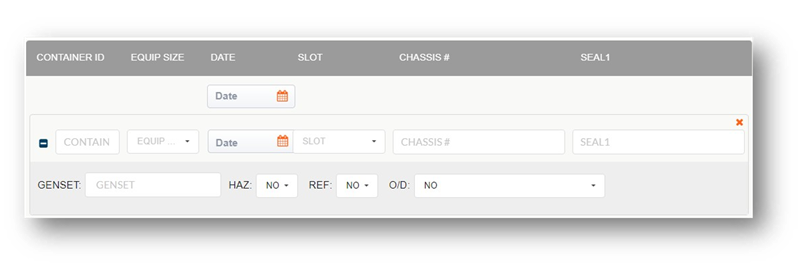
- When making export drop-off appointments, use the plus sign on the left to show more options such as marking the container as hazardous or reefer.
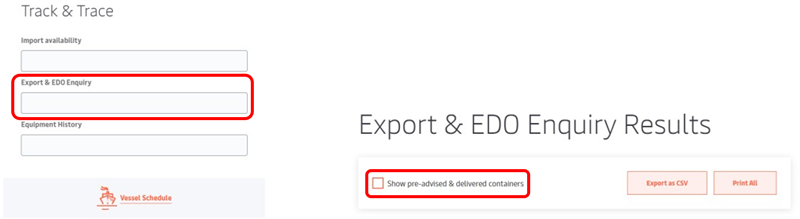
- Only hazardous exports need to be preadvised. The preadvised containers can be checked on the APMTerminals.com Track & Trace feature for Export & EDO Enquiry.
- If you cannot determine the issue from your warning or invalid message, contact the Terminal Solution Center (TSC). The TSC’s phone number and support form link are in the lower left corner of the TERMPoint website.
TSC email: TSC@apmterminals.com
Phone: 866-855-8552
Container ISO Codes
| Length | Height |
Type |
| 2: 20 Feet | 2: 8 Feet 6 Inches | G: General Purpose Container |
| 4: 40 Feet | 5: 9 Feet 6 Inches | R: Refrigerated Container |
| L: 45 Feet | U: Open Top Container | |
| M: 48 Feet | P: Platform Container | |
| T: Tank Container |
| Container Type | ISO Code |
| 20' Dry | 22G1 |
| 20' Reefer | 22R1 |
| 20' Tank | 22T1 |
| 40' Standard | 42G1 |
| 40' High Cube | 45G1 |
| 40' Reefer High Cube | 45R1 |
| 45' Dry | L5G1 |